




- Email[email protected]
- Phone+962 797 166 177
- Birthday1982-09-25
- LocationAmman, Jordan
The Markdown Pipeline Automating Bulk OCR Conversion and Direct SharePoint Publishing
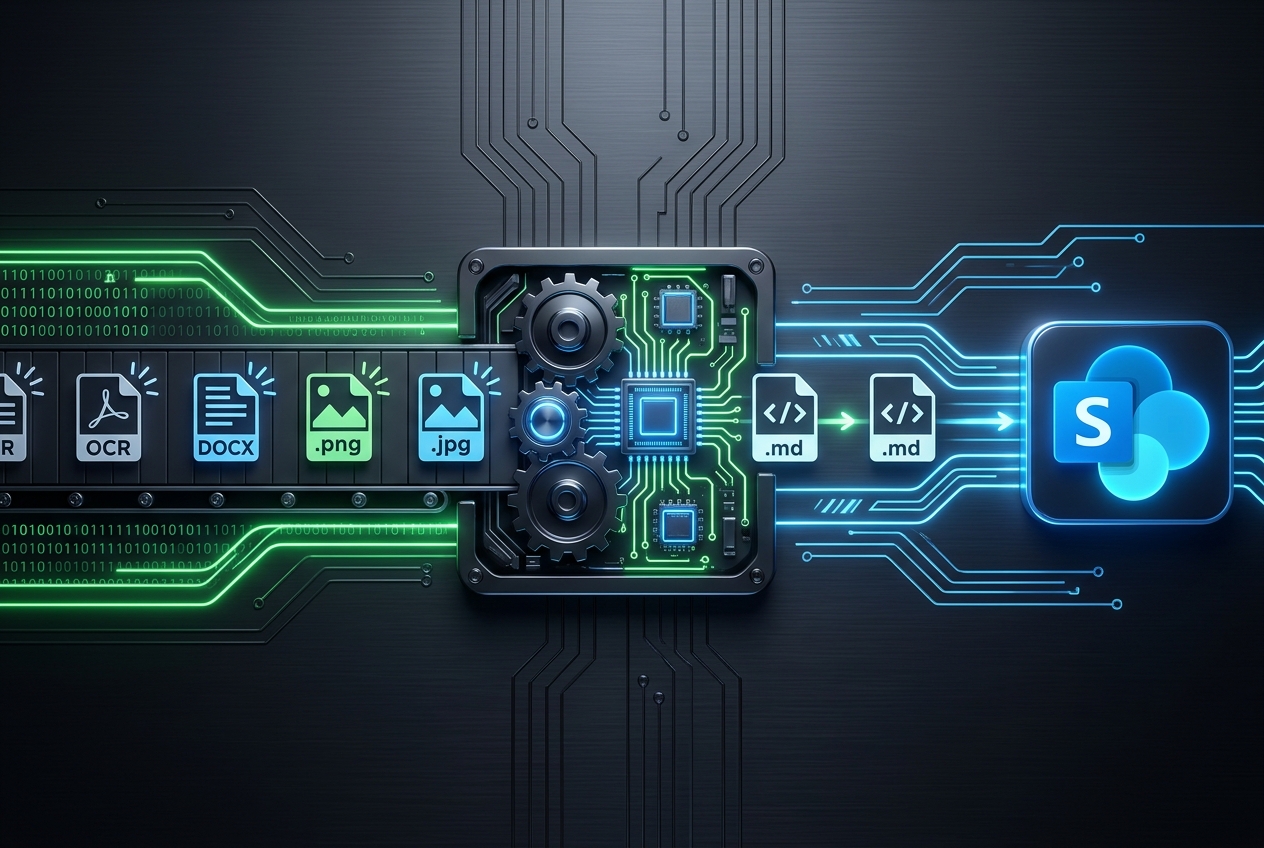
G'day mates! Welcome back. In my last post, I talked about why I transitioned my entire work vault to Markdown (.md) to make it accessible to Obsidian, Claude Code, and the Antigravity CLI. But as promised, today we're talking about the engineering behind that transition: the automation pipeline.
Manually converting hundreds of legacy documents and extracting text from screenshots is a developer's nightmare. To solve this, I built a custom python tool—packaged as a reusable skill—that recursively crawls directory structures, converts Word documents and PDFs to clean Markdown, and uses Optical Character Recognition (OCR) to extract text from images. To close the loop, I built a second skill that automatically publishes these markdown pages directly to our company's corporate SharePoint site using the SharePoint REST API. Let's crack into how it works!
Part 1: The Markdown Conversion & OCR Engine
The first half of the pipeline is a Python script that recursively crawls a folder and its subfolders. It handles different file types on the fly:
- Word Documents (.docx): It uses python libraries to parse paragraph structures, extracting headers, bold text, and converting tables into clean GFM (GitHub Flavored Markdown) format.
- Images (.png, .jpg): If it encounters an image (like a screenshot of a terminal or a dashboard), it utilizes Tesseract OCR via the pytesseract library to extract the text. It then saves this extracted text as a code block within a generated Markdown file, matching the original image's name.
- PDFs: It extracts text page-by-page, formatting headings and paragraphs.
Here is a simplified look at the crawler loop in Python:
Python
import os
from pathlib import Path
def convert_vault(root_dir):
for path in Path(root_dir).rglob('*'):
if path.is_file():
if path.suffix == '.docx':
convert_docx_to_md(path)
elif path.suffix in ['.png', '.jpg', '.jpeg']:
extract_image_text_ocr(path)
elif path.suffix == '.pdf':
convert_pdf_to_md(path)
This recursive run ensures that no matter how deep the documentation folder structure is, the script cleans up and standardizes everything into markdown in a single pass.
Part 2: Direct Publishing to SharePoint
Once we have our clean markdown notes, the next step is sharing them with the rest of the company. Our team uses Microsoft 365 and SharePoint for internal documentation, but using SharePoint's web editor is slow and clunky.
To bridge this gap, I built the md-to-sharepoint-page skill. This script automatically mirrors our local .md files into modern SharePoint site pages using the SharePoint REST API.
First, we set up authentication. Rather than creating complex Azure App Registrations (which require admin approvals), we use the Microsoft Graph Command Line Tools client ID (14d82eec-204b-4c2f-b7e8-296a70dab67e). This allows us to use a standard device-code/interactive login flow:
Python
from msal import PublicClientApplication
app = PublicClientApplication(
"14d82eec-204b-4c2f-b7e8-296a70dab67e",
authority="https://login.microsoftonline.com/common"
)
# Interactive or device code flow retrieves token, cached locally
Once authenticated, the publishing script does the following:
1. Derives the page name by stripping file prefixes (e.g., WEB_Onboarding.md becomes page titled "Onboarding").
2. Converts the Markdown to a clean, SharePoint-safe HTML web part (stripping out YAML frontmatter and Obsidian-specific wikilinks that would break on SharePoint).
3. Checks out the SharePoint page using a POST request.
4. Updates the page's CanvasContent1 property via a PATCH request with the converted HTML.
5. Checks in the file and publishes it.
Here is a snippet showing the core REST API payload structure for updating the page content:
Python
import requests
def update_sharepoint_page(site_url, page_id, html_content, token):
headers = {
"Authorization": f"Bearer {token}",
"Content-Type": "application/json",
"IF-MATCH": "*"
}
payload = {
"CanvasContent1": f"[{{\"id\":\"g_a0b1c2d3\",\"controlType\":3,\"displayMode\":2,\"webPartId\":\"df38dd45-e1fc-4ab9-a400-052445199580\",\"innerHTML\":\"{html_content}\"}}]"
}
response = requests.patch(
f"{site_url}/_api/sitepages/pages({page_id})",
headers=headers,
json=payload
)
return response.status_code == 204
The Single Source of Truth
This setup has completely eliminated the overhead of writing documentation. I write my notes locally in Obsidian using simple markdown. When I'm done, I run a single command in the terminal. The sync script runs in the background, authenticates, converts the markdown, and updates the live corporate SharePoint page in seconds. No copying, no pasting, no web editors.
And that's a wrap! Let me know if you are automating your team's wiki or have any questions about the Microsoft Graph authentication flow. Cheers!
"If you've got any questions or need a hand wrangling your own setup, don't hesitate to reach out at [email protected] or connect with me via www.yazan.me. I'm always keen to help out!"