




- Email[email protected]
- Phone+962 797 166 177
- Birthday1982-09-25
- LocationAmman, Jordan
Brew-tiful Mornings: Automating Office Coffee with a Pi Zero & BLE Beacons
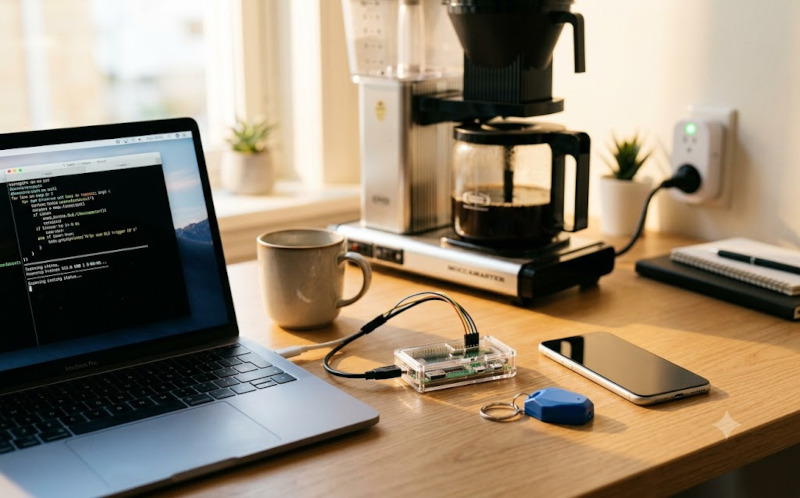
G'day mates! Welcome back to the lab. If you are fair dinkum about your morning routine, you know that getting a solid cup of coffee brewing before you even touch your keyboard is an absolute necessity. Today, we are setting up a cracking little presence detection system right at the office desk to do exactly that.
The beauty of this project is that we are completely bypassing the need to install a heavy Home Assistant OS instance on the work network. Instead, we are using a trusty Raspberry Pi Zero to act as a standalone scanner for a Bluetooth beacon. Once you walk up to your desk, the Pi detects your presence and fires a remote command through our Tailscale mesh network directly to the central Home Assistant brain sitting back at the house. This instantly flicks on the smart plug for the office coffee maker, ensuring your brekkie brew is ready to go. Let's crack into the terminal and get this sorted!
Step 1: The Bash Presence Scanner
First up, we need a script that listens for your specific BLE beacon or mobile UUID. We will use hcitool and btmon to grab the signal strength (RSSI) and mathematically calculate if you are within the immediate desk perimeter. This script also features a smart little flag file system to ensure your coffee maker only gets triggered once per day, saving you from boiling a dry pot!
Create a file called detect_beacon.sh in your /home/work/scripts/ directory and drop this code in:
Bash
#!/bin/bash
# --- Configuration ---
BEACON_MAC="DC:0D:30:11:CD:FC" # Beacon
BEACON_ID="9c5c51dd-4cbb-404a-aa27-f01c07dd5a22" # Mobile
RSSI_THRESHOLD="-150" # Desk perimeter threshold
TX_POWER="-59" # Standard signal strength at 1 meter distance
PATH_LOSS="2.5" # Environmental factor (2.5 is standard for an office)
COOLDOWN=10
LAST_TRIGGER=0
# --- New Daily Trigger & Timeout Config ---
TIMEOUT_SECONDS=15
FLAG_FILE="/tmp/coffee_triggered"
# Exit immediately if the coffee was already triggered today
if [ -f "$FLAG_FILE" ]; then
exit 0
fi
echo "Starting desk presence scanner for MAC: $BEACON_MAC and ID: $BEACON_ID"
echo "Running for a maximum of $TIMEOUT_SECONDS seconds..."
# 1. Clean up any ghost processes from previous runs safely
sudo killall -9 hcitool btmon 2>/dev/null || true
# 2. Reset the Bluetooth hardware cleanly
sudo rfkill unblock bluetooth
sudo hciconfig hci0 down 2>/dev/null || true
sleep 1
sudo hciconfig hci0 up
# 3. Start the background scan on the 5.1 dongle
sudo hcitool -i hci0 lescan --duplicates > /dev/null 2>&1 &
SCAN_PID=$!
# 4. Ensure clean exit!
trap 'sudo kill -9 $SCAN_PID 2>/dev/null; sudo killall -9 btmon 2>/dev/null; echo -e "\nScanner stopped safely."; exit 0' SIGINT SIGTERM EXIT
MATCHED_BEACON=0
# 5. Read the matrix with a strict timeout limit
timeout $TIMEOUT_SECONDS stdbuf -oL sudo btmon -i hci0 | while read -r line; do
# Reset state machine on new packet
if echo "$line" | grep -q "^> HCI Event"; then
MATCHED_BEACON=0
fi
# Check for your Feasycom MAC address OR your Mobile UUID
if echo "$line" | grep -i -q "$BEACON_MAC" || echo "$line" | grep -i -q "$BEACON_ID"; then
MATCHED_BEACON=1
fi
# Grab the RSSI and calculate distance
if [ "$MATCHED_BEACON" -eq 1 ] && echo "$line" | grep -q "RSSI:"; then
RSSI=$(echo "$line" | grep -oEo -- '-[0-9]+' | head -n 1)
if [ ! -z "$RSSI" ]; then
# Calculate estimated distance in meters using awk
DISTANCE=$(awk -v rssi="$RSSI" -v tx="$TX_POWER" -v n="$PATH_LOSS" 'BEGIN { printf "%.2f", 10 ^ ((tx - rssi) / (10 * n)) }')
if [ "$RSSI" -ge "$RSSI_THRESHOLD" ]; then
echo "[$(date)] ✨ AT DESK! Signal: $RSSI dBm | Distance: ~$DISTANCE meters"
echo " Firing local PHP script to Home Assistant..."
# Fire the trigger
php /home/work/scripts/trigger.php
# Create the flag file so it doesn't run again today
touch "$FLAG_FILE"
# Kill the script entirely right now! (This fires the trap command to clean up background processes)
exit 0
else
echo "[$(date)] 🚶 Roaming... Signal: $RSSI dBm | Distance: ~$DISTANCE meters. Ignoring."
fi
MATCHED_BEACON=0
fi
fi
done
Step 2: The Webhook Trigger
Now we need the PHP script that actually talks to our Tailscaled Home Assistant instance. This little ripper packages up a cURL request with your Long-Lived Access Token and tells your home server to flick on the work plug.
Create trigger.php in the same directory:
PHP
<?php
// --- Configuration ---
// Your Home Assistant instance URL (using your Tailscale IP)
// If it's a light rather than a switch, use /api/services/light/turn_on
$ha_url = "http://your-ip:8123/api/services/switch/turn_on";
// Your Long-Lived Access Token from Home Assistant
$token = "YOUR_HA_LONG_LIVED_TOKEN_HERE";
// The exact Entity ID of the plug at your workstation
$entity_id = "switch.smart_plug_eu_2_socket_1";
// --- Payload ---
$data = json_encode(array("entity_id" => $entity_id));
// --- cURL Setup ---
$ch = curl_init($ha_url);
curl_setopt($ch, CURLOPT_POST, 1);
curl_setopt($ch, CURLOPT_POSTFIELDS, $data);
curl_setopt($ch, CURLOPT_RETURNTRANSFER, true);
curl_setopt($ch, CURLOPT_HTTPHEADER, array(
"Authorization: Bearer " . $token,
"Content-Type: application/json"
));
// --- Execution ---
$response = curl_exec($ch);
$http_code = curl_getinfo($ch, CURLINFO_HTTP_CODE);
if (curl_errno($ch)) {
echo "[Error] cURL request failed: " . curl_error($ch) . "\n";
} else {
// Home Assistant usually returns 200 for successful service calls
if ($http_code == 200 || $http_code == 201) {
echo "[Success] Office plug fired up! HA responded with HTTP " . $http_code . "\n";
} else {
echo "[Warning] HA returned HTTP code " . $http_code . "\nResponse: " . $response . "\n";
}
}
?>
Step 3: Scheduling with Cronjobs
We only want this scanner running and eating up resources during the morning rush, specifically Monday through Friday. We also need to automatically delete the flag file early every morning so the system is ready for a fresh brew the next day.
Open up your crontab using crontab -e and paste in these scheduling rules:
Bash
# Reset the trigger flag every morning at 6:00 AM
0 6 * * * rm -f /tmp/coffee_triggered > /dev/null 2>&1
# Run between 6:30 AM and 6:59 AM
30-59 6 * * 1-5 /home/work/scripts/detect_beacon.sh > /dev/null 2>&1
# Run between 7:00 AM and 8:59 AM
* 7-8 * * 1-5 /home/work/scripts/detect_beacon.sh > /dev/null 2>&1
And that is a wrap! Your Pi Zero will now quietly sniff out your beacon as you stroll into the office, securely bridging the gap back to your home lab to kickstart your morning routine.
"If you've got any questions or need a hand wrangling your own setup, don't hesitate to reach out at [email protected] or connect with me via www.yazan.me. I'm always keen to help out!"